Photo Library
The main folder containing the whole collection.
 Continuum PHOTOS
Getting Started / Photo Preservation
Create a Photo Library from scratch, one manageable step at a time. We’ll build the beginnings of the demo library you’ve seen on the homepage.
Follow the real app from an empty folder to the first five-photo Group. Learn where your files go, how to preserve what you know, and how to leave the collection understandable beyond Continuum.
Start Here ↓STEP 01
You do not need to organize every photograph before starting. Pick one packet of prints, one album, or one small set of digital images. Finish that first Group, learn what works, and repeat.
We’ll rebuild The Lincoln family album, the first five-photo Group in the demo library shown on the homepage. The screenshots show a fresh library being built, not a tour of an already finished collection. Your new Photo IDs will be different; that is expected.
Download the practice kit and unzip it. It contains the same five image files, readable source notes, and an optional empty library for people who already have Continuum configured.
Download the Practice Kit5 photos · ZIP, 26.4 MB · No finished Group records to skip ahead.
Read the Photo Source Notes ↗Keep Lincoln Photo Files outside the Photo Library you are about to create. It is your input folder. Continuum will copy the selected images into their new Group.
The main folder containing the whole collection.
A folder for photos you choose to keep together.
A readable text record of the Group and its Photos.
STEP 02
Use the Windows or macOS download on the homepage. The current Mac download is for Apple Silicon.
Extract the ZIP using Extract All. Open the extracted continuum folder and launch continuum.exe. Keep the whole extracted folder together, including _internal.
Unzip the download. Move Continuum Photos.app to Applications, then open it. The app and your Photo Library are separate: your photos do not belong inside the app bundle.
Choose a lasting home for your library: a dedicated folder on a drive you can write to, with enough room for your photos and a separate backup. For a first attempt, a local folder is straightforward. If you use an external drive or NAS, connect it before opening the library.
The screenshots use the app’s light appearance on Windows. Folder pickers and operating-system controls look different on a Mac; the Group and Photo record fields follow the same structure.
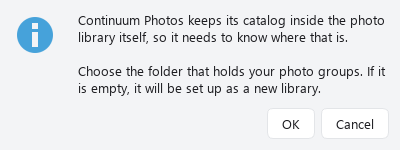
STEP 03
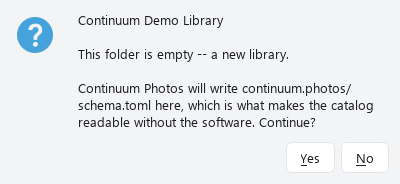
continuum.photos folder holds the schema and other library-wide information. You do not need to create Catalog files or type any TOML yourself.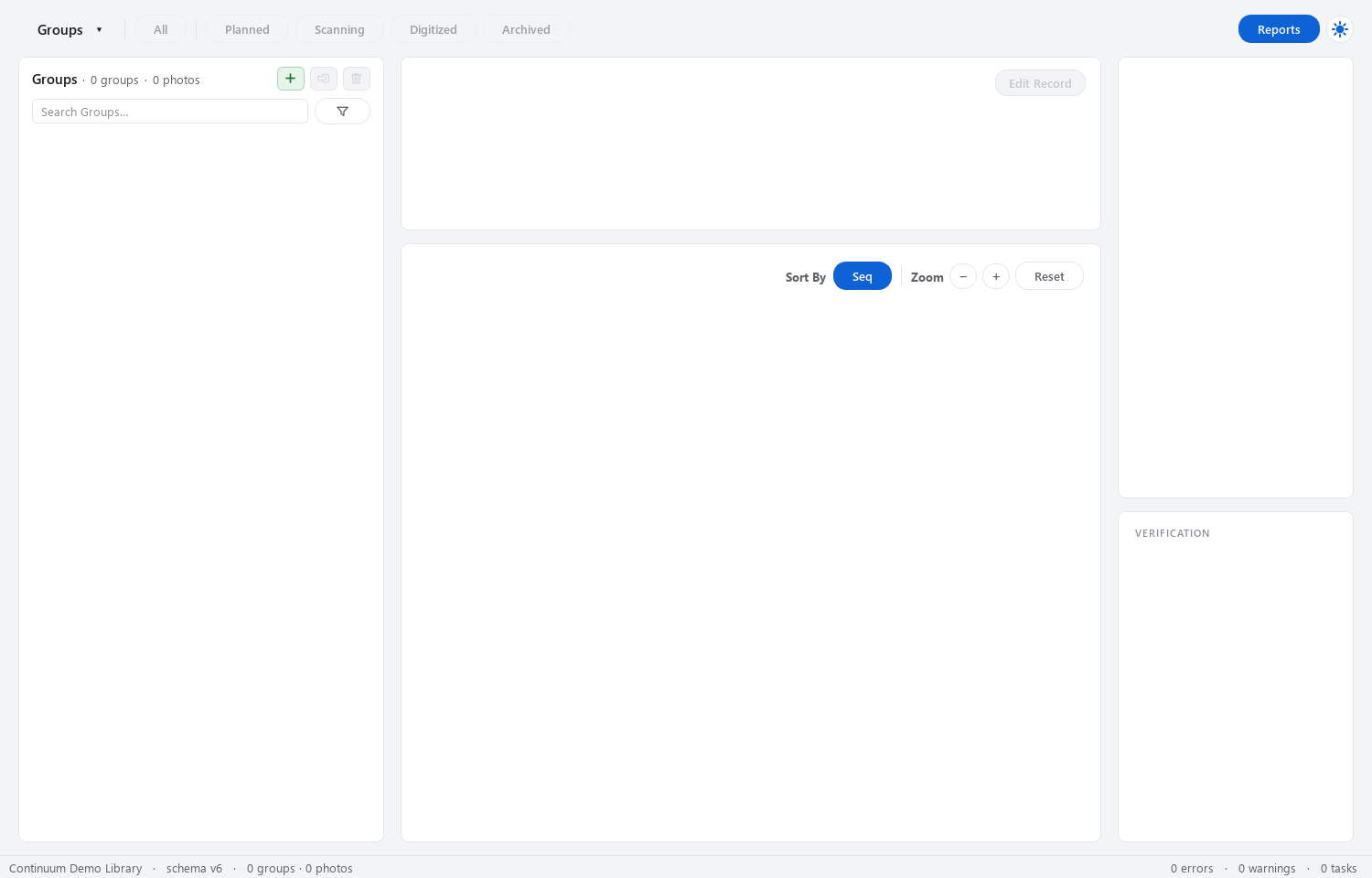
The welcome flow is for first-time setup. Settings → Add existing library… expects an initialized Continuum library, so it will reject a completely empty folder.
To follow along without touching your existing collection, use Empty Practice Library from the practice kit. It contains only the schema, with no Groups or Photos. You may rename that folder before opening it. Choose Settings from the view menu, choose Add existing library…, select that folder, then Save. Continue with the next step.
Select the library folder containing continuum.photos, not the shared folder itself and not the outer Continuum Getting Started download folder.
STEP 04
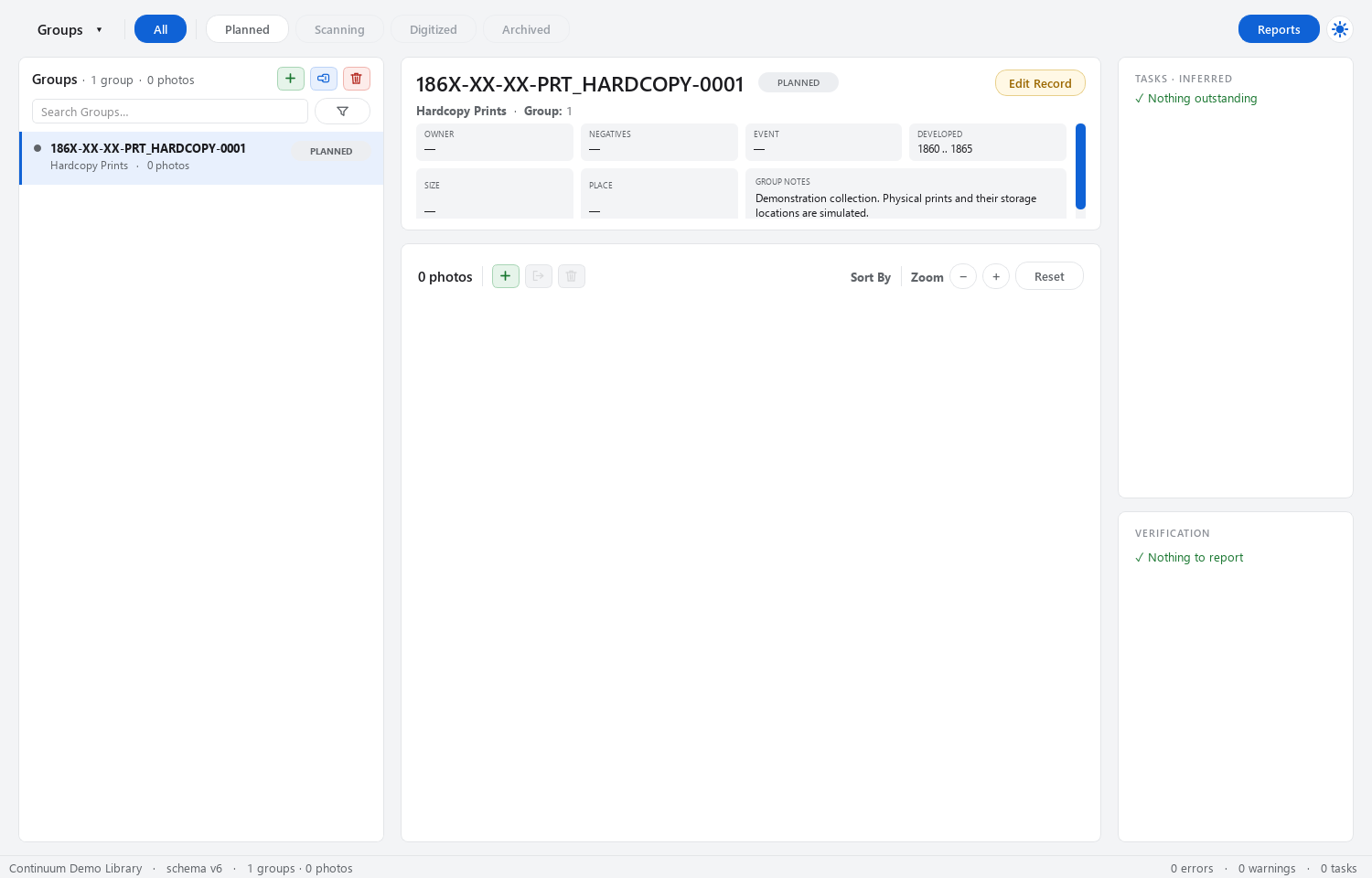
In Groups, click the green + beside the Group count at the top of the left panel. This is different from the + above the photo thumbnails, which adds Photos to an existing Group.
For the Lincoln collection, fill in the following. This is an assembled historical collection: its Group dates describe the collection’s range, not a surviving developer stamp.
| Field | Enter for this walkthrough |
|---|---|
| Medium | PRT_HARDCOPY — Hardcopy Prints. |
| Status | Leave PLANNED. |
| Earliest Date | 1860 |
| Latest Date | 1865 |
| Notes | Demonstration collection. Physical prints and their storage locations are simulated. |
Leave Photo Owner, Size, Inscription, and Tasks empty for now. Read the green preview, then choose Create Group. In an empty library, it assigns PRT_HARDCOPY-0001 and creates a date-prefixed folder. Numbers are assigned by the app.
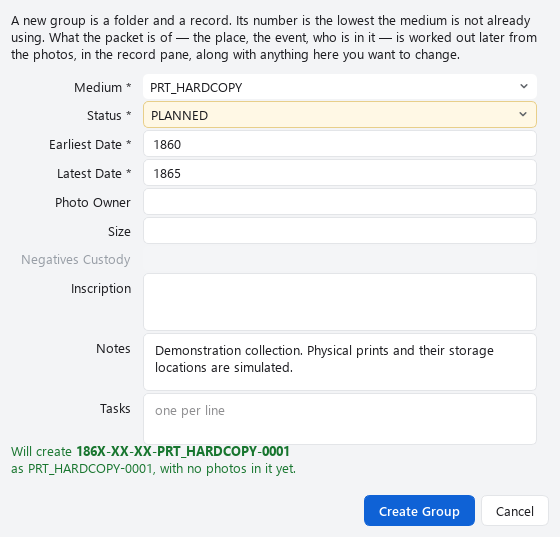
4x6. Leave it blank until you have print records and know their dimensions.For uncertain dates you can use a year, a year and month, or unknown digits: 1948, 1948-07, or 194X-XX-XX. You do not have to invent a day. A blank Latest Date in the New Group dialog uses the Earliest Date.
STEP 05
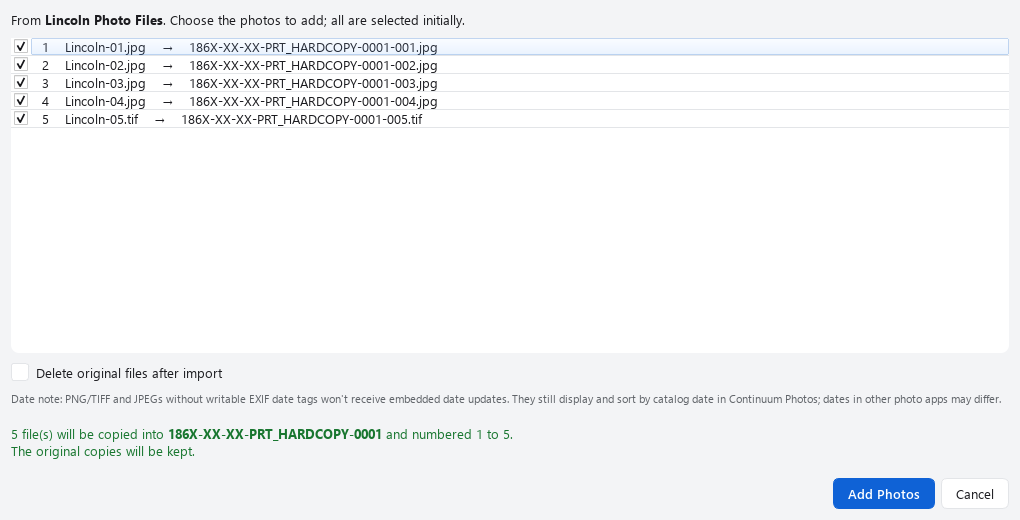
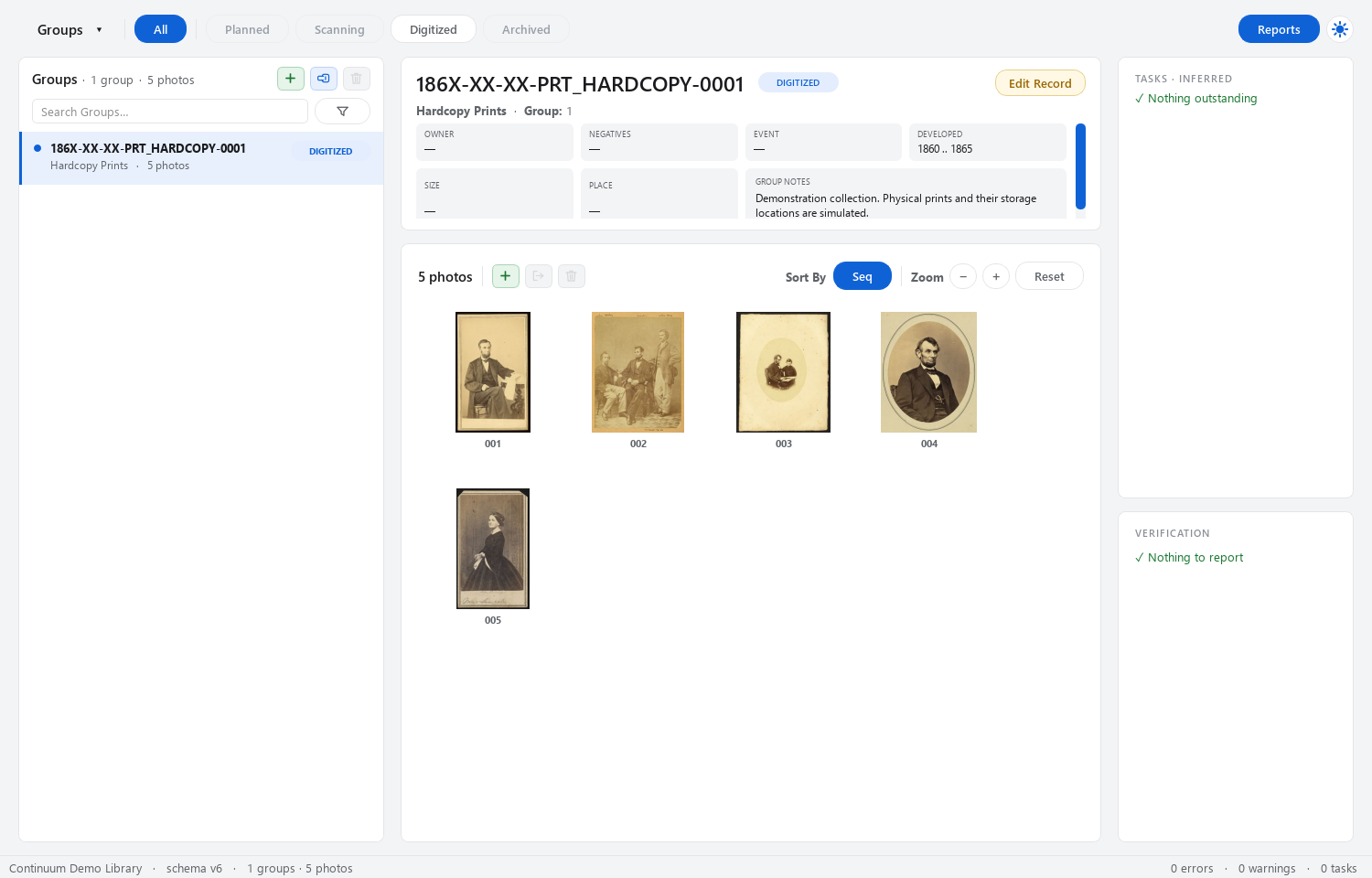
Continuum creates a Photo record for each imported image, assigns its sequence and permanent Photo ID, and gives the copied image a matching filename. Importing into this Planned Group changes its status to Digitized. The Photos exist now; describing and filing their originals is still work to do.
Make sure you extracted the ZIP and are choosing actual image files. Check the recognized extensions under Settings → File recognition. JPEG, TIFF, and PNG are supported; HEIC/HEIF is not supported by this version. Keep original files when preparing compatible copies.
STEP 06
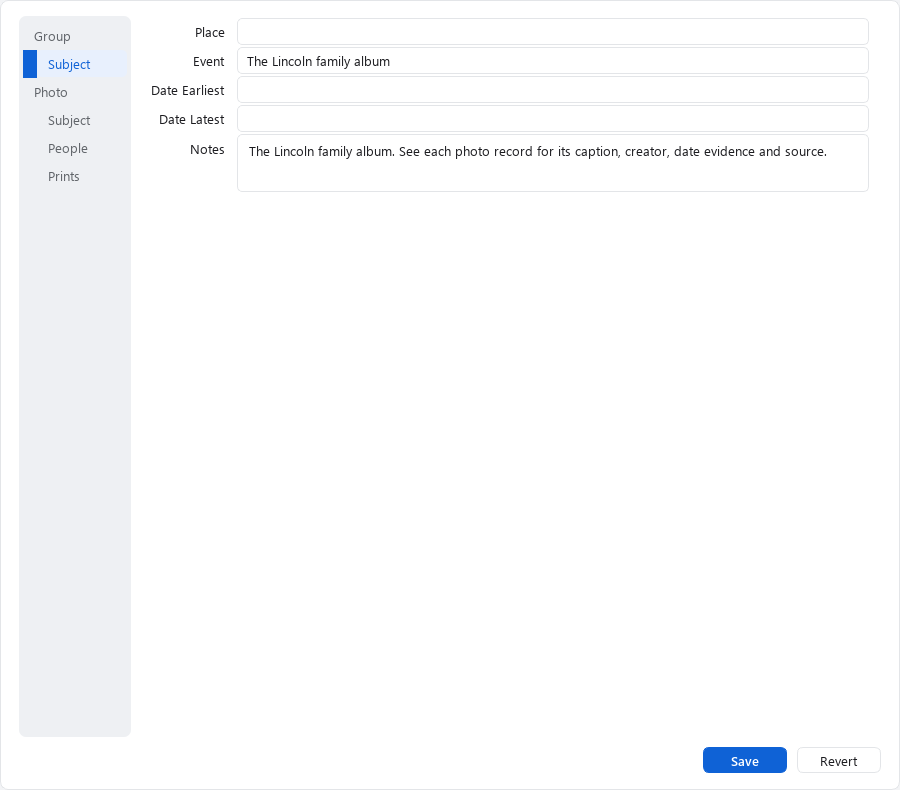
Shared subject fields are useful defaults. An individual Photo can have a more specific place, occasion, or date. Avoid filling the Group with a precise date that is only true of one picture.
STEP 07
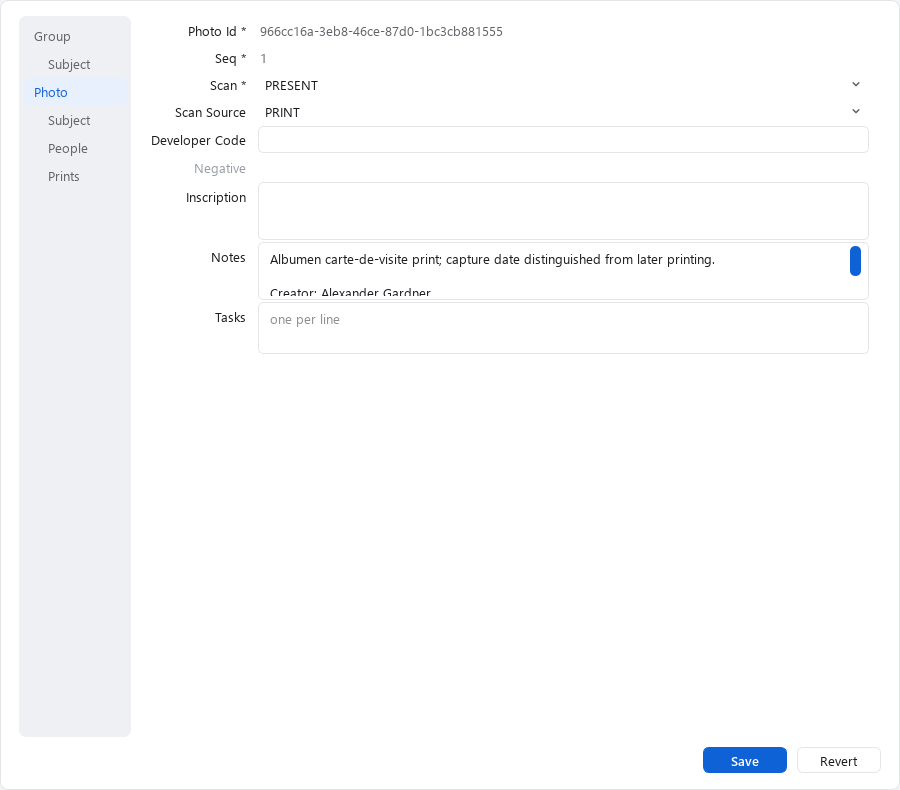
Select Photo 001, the seated Lincoln portrait. Choose Edit Record. When a Photo is selected, the editor opens on its Photo section; the Group fields remain available above it.
The import has already set Scan to PRESENT and Scan Source to PRINT. Check that they describe the image you actually have. Leave the app-assigned Photo ID and sequence alone. A developer code means a photographic lab’s original code, not a software version.
Under Photo → Notes, keep the creator, source URL, and explanation of the source material. The practice kit’s Source Notes provides text for each photo. Use Inscription only for writing you have transcribed, and Tasks for questions that remain.
1863-08-09 in both Date Earliest and Date Latest.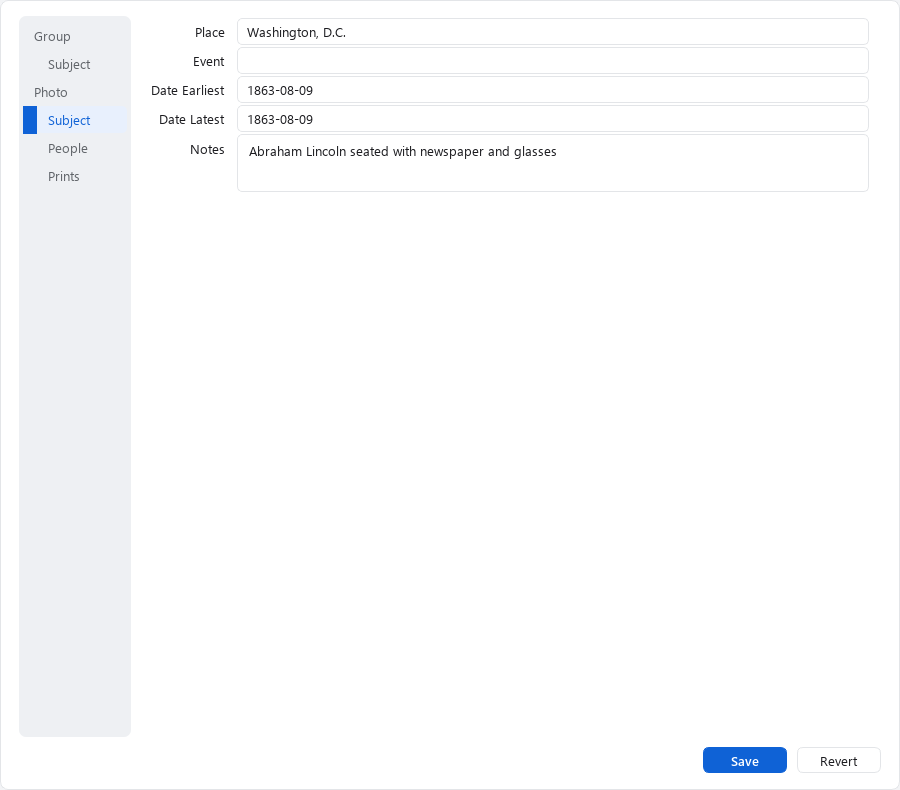
| Photo | What it shows | Taken date | Place |
|---|---|---|---|
| 001 | Lincoln seated with newspaper and glasses | 1863-08-09 | Washington, D.C. |
| 002 | Lincoln with John Nicolay and John Hay | 1863-11-08 | Washington, D.C. |
| 003 | Abraham and Tad Lincoln with a photograph album | 1864-02-09 | Washington, D.C. |
| 004 | Lincoln portrait on an album page | 1864-02-09 | Leave blank |
| 005 | Mary Todd Lincoln carte de visite | No more precise date; retain the 1860–1865 Group range | Leave blank |
For the four exact dates, use the same value in both date fields. For Photo 005, leave its own date fields blank. A publication date or a photographer’s business address is not automatically the date or place the picture was taken.
STEP 08
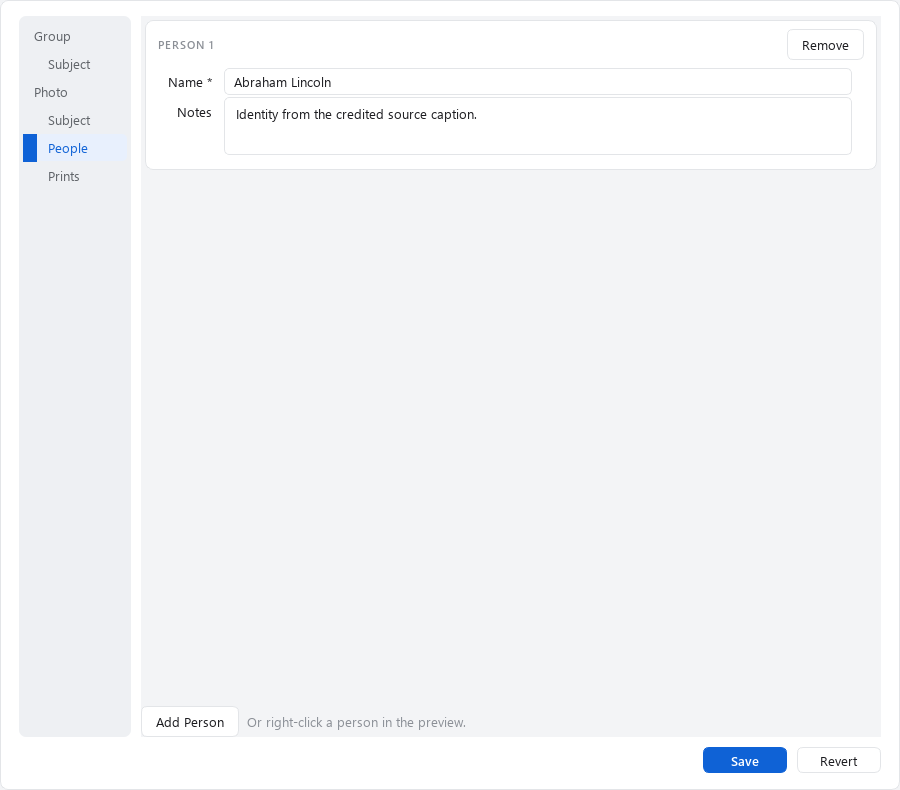
There are two useful ways to name someone. Use the record when you know who is present; use the picture when you can point to their face.
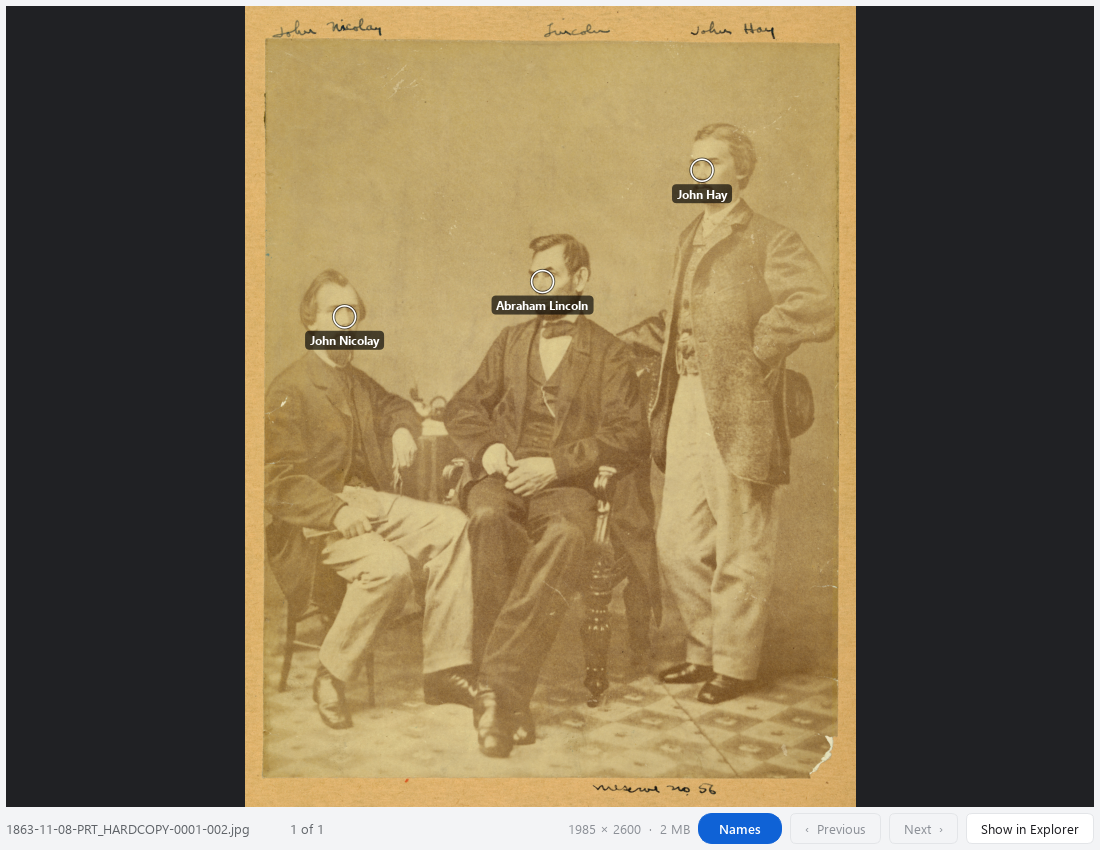
Open a Photo in Preview from its right-click menu (or open its thumbnail). Right-click the face and choose Mark Person Here…. Choose the existing person’s name or enter a new one. Repeat for other people. The Names button lets you hide or show the markers.
Photo 002 is a useful example: John G. Nicolay is on the left, Abraham Lincoln in the middle, and John Hay on the right. Photo 003 includes Abraham and Tad Lincoln; Photo 004 shows Abraham Lincoln; Photo 005 shows Mary Todd Lincoln. Use the same spelling for the same person.
STEP 09
This is the connection between the digital collection and the things on your shelf. One Photo can have several physical prints, each with a different location and size.
| Photo 001 copy | Location | Location note / size |
|---|---|---|
| 1 | ARCHIVED | Leave its size blank; the demo will use a 4x6 Group default later. |
| 2 | ALBUM | Demo presentation binder — The Lincoln family album / 5x7. |
| 3 | DISPLAY | Demo gallery wall — rotating selection / 8x10. |
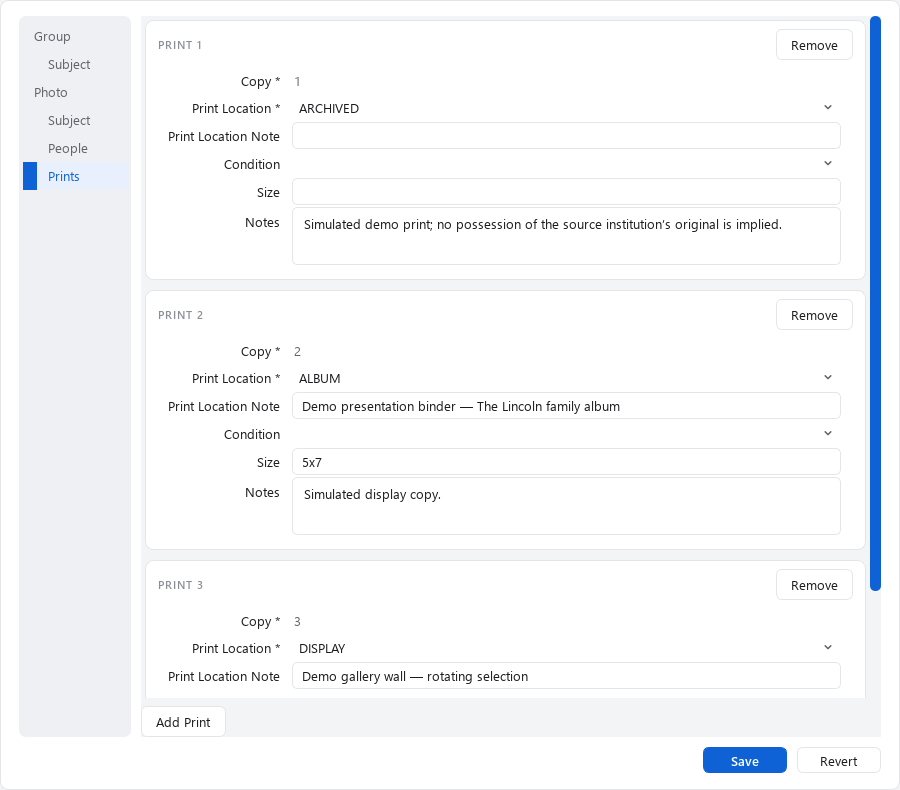
Add “Simulated demo print; no possession of the source institution’s original is implied” in the first copy’s Notes. The other two are a simulated display copy and enlargement. In your own library, replace these examples with the real places and objects you can account for.
To match the rest of this demo Group, Photos 002, 003, and 005 each have one Archived print. Photo 004 has one Archived print and a second in DUPLICATE_BOX, with “Demo duplicates box, divider A” in its Notes. The practice arrangement totals 8 print copies for 5 Photos.
MISSING is a location state: a print was recorded but cannot be accounted for. NO_IMAGE is a condition: the print exists but has no usable picture. OTHER means a location outside the standard choices and requires a location note.
For negative-based Groups, record negative custody and individual missing or unusable negatives as appropriate. If you scanned a surviving print instead of a negative, check that the Photo’s Scan Source says PRINT. A print record does not replace the negative record.
STEP 10
After you replace a broad date with a Photo’s known date, its saved record may be more precise than its filename. The Verification card can show that mismatch. This is a useful prompt to bring the files up to date.
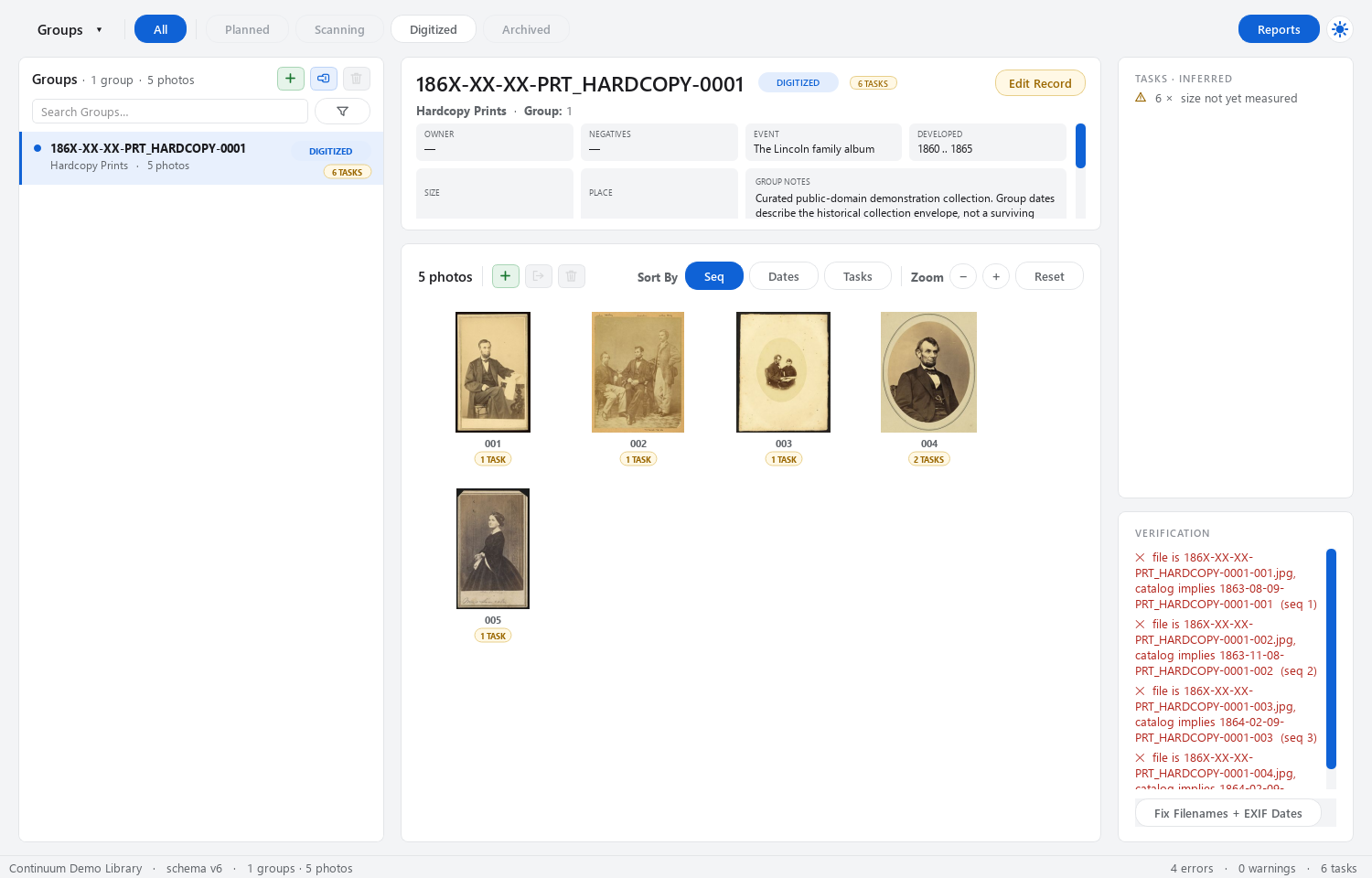
1863-08-09.EXIF is information stored inside a photo file. Continuum can update existing, writable EXIF date fields in supported JPEGs, so compatible apps—including photo browsers on phones—can use the historical date instead of the date the picture was scanned.
That is not guaranteed for every file. The app reports unsupported or missing fields. PNG, TIFF, and JPEGs without writable date tags do not receive these EXIF date updates. Photo 005 in the practice set is a TIFF; its Catalog still preserves its dates even though this EXIF operation does not apply.
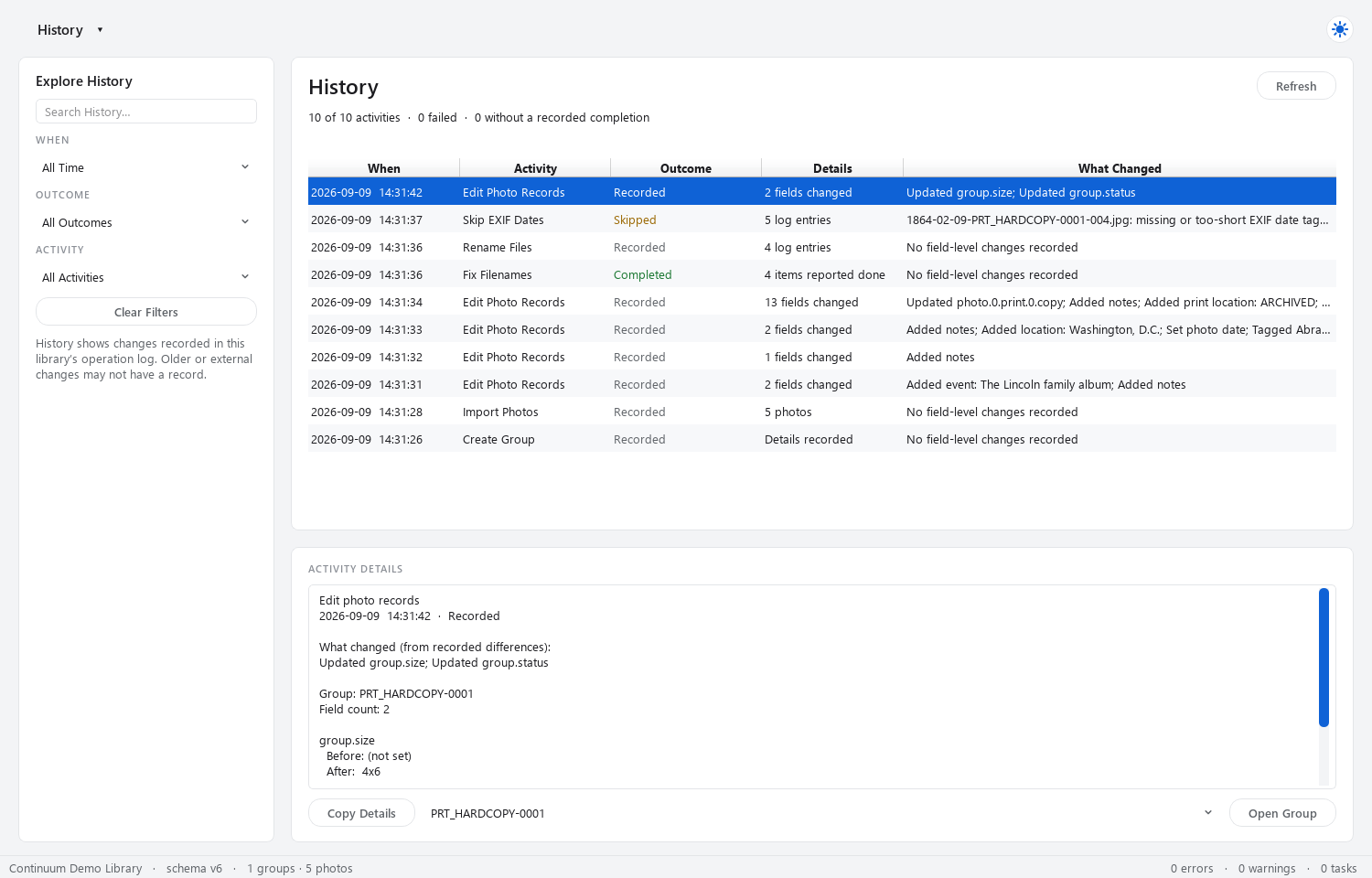
In this captured practice run, all five embedded-date updates were skipped: the four JPEGs lacked writable date tags, and the fifth file was a TIFF. The filenames were updated, and the Catalog dates remained intact. If you see that result while following along, it matches the example; it does not mean the photo dates were embedded successfully.
An estimated date may need a specific sorting day and assigned time for other apps. The Catalog keeps the fuller range and uncertainty. Test a transferred photo in the receiving app: some transfer and sharing services remove metadata.
STEP 11
Open Edit Record → Group. Now that the example has print records, enter 4x6 in Size as the simulated default. Individual 5x7 and 8x10 copies retain their own sizes.
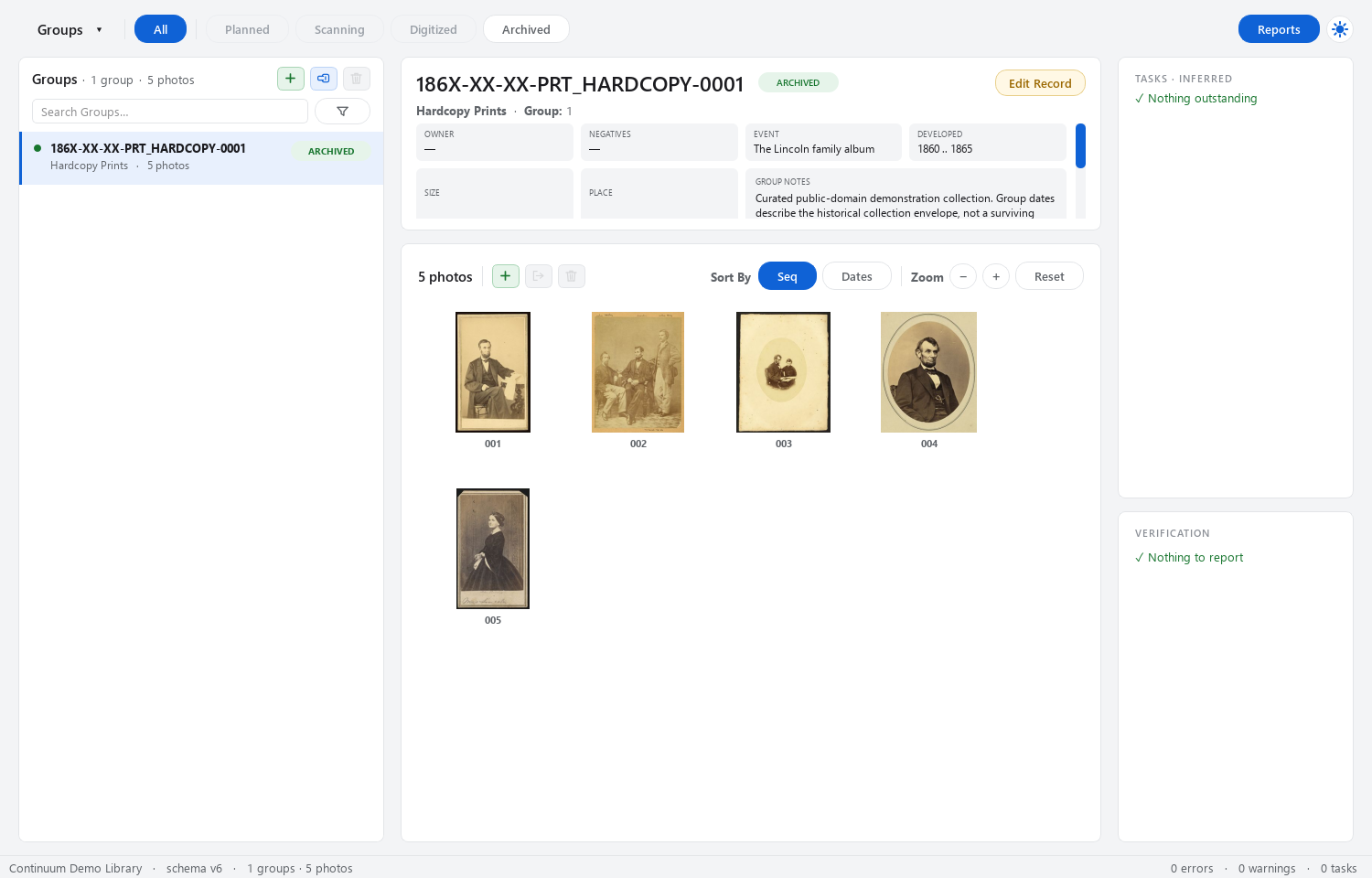
When your digital Photos are in place and the physical arrangement has been recorded, set Status to ARCHIVED and choose Save. For a real collection, choose the status that describes the work actually completed.
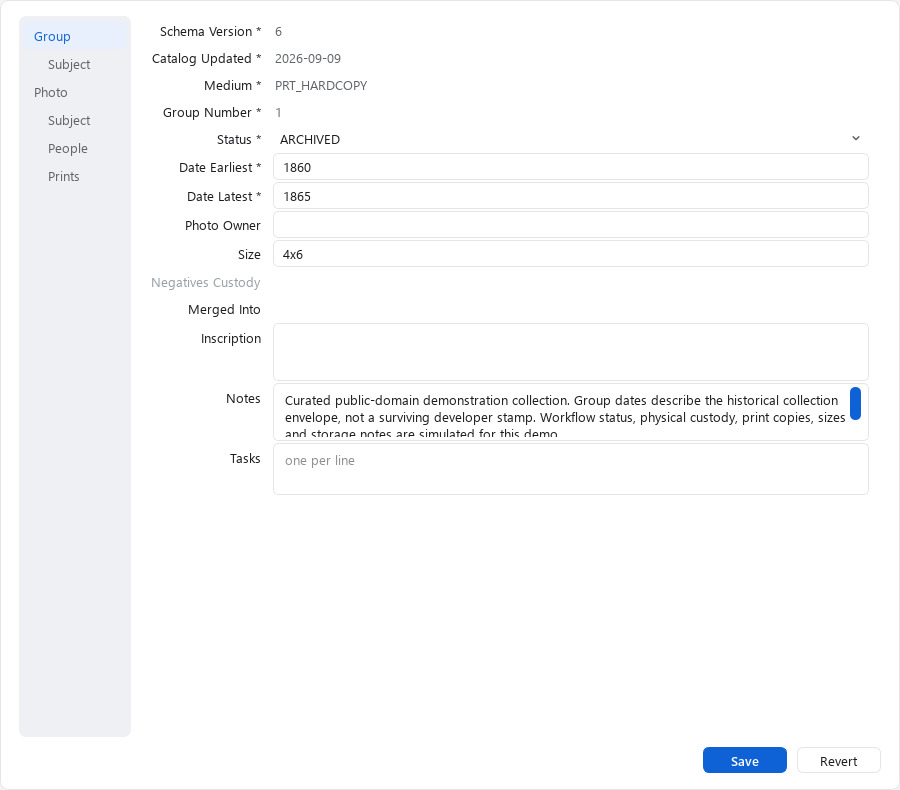
A Group can stay Archived while a research task remains. Put unfinished questions in Tasks rather than inventing answers. Use the Tasks view to return to them later. Inferred tasks, such as missing measurements, come from the records; resolve the underlying detail when you know it.
STEP 12
The menu in the top-left corner shows the current view name, such as Groups. Click it to switch views. These are different ways to browse the same Photos; switching views does not move the image files.
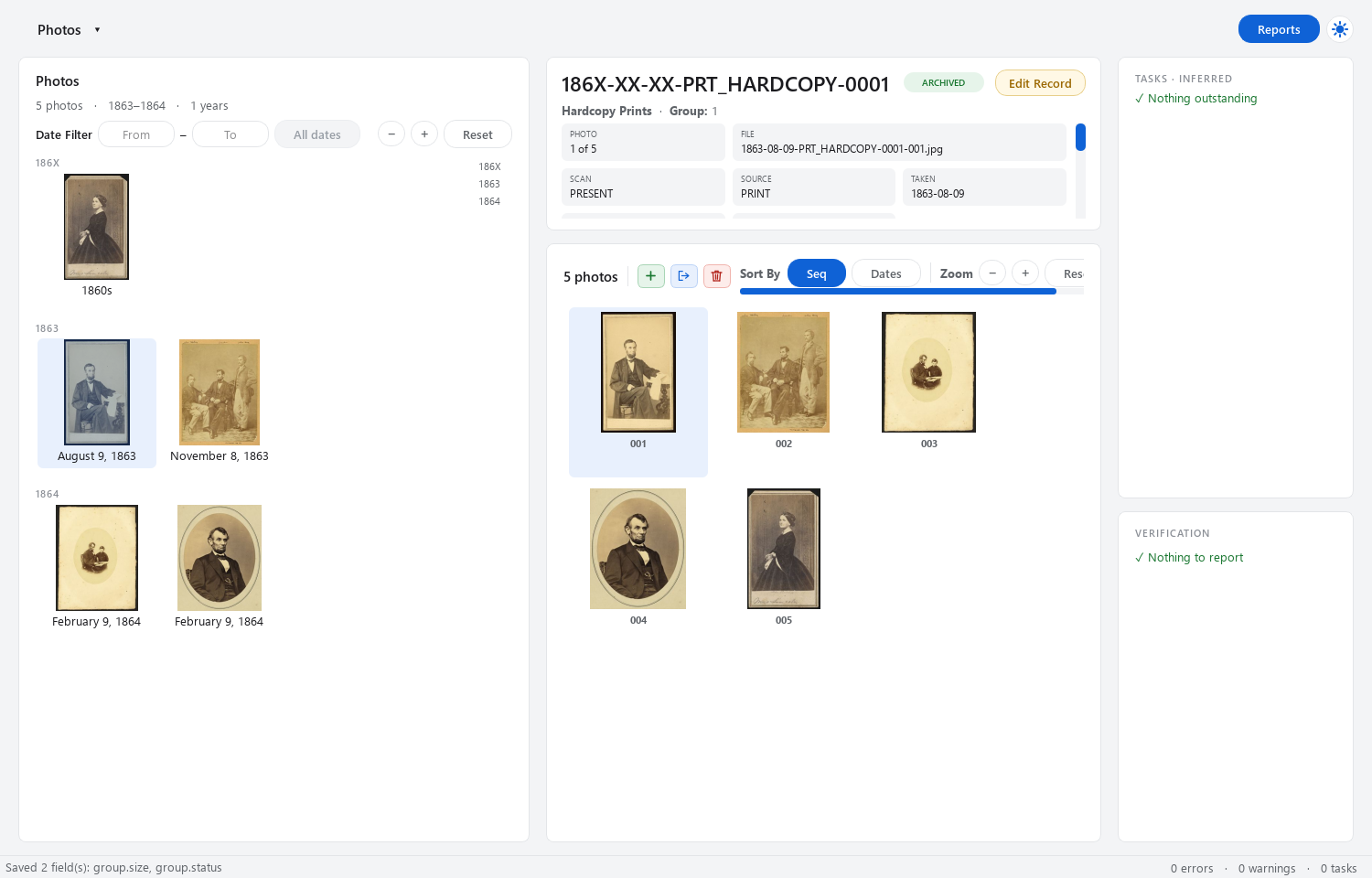
Choose Photos to browse across Groups. The four precisely dated pictures and the broader-date Mary Todd Lincoln record now have their recorded dates available for browsing.
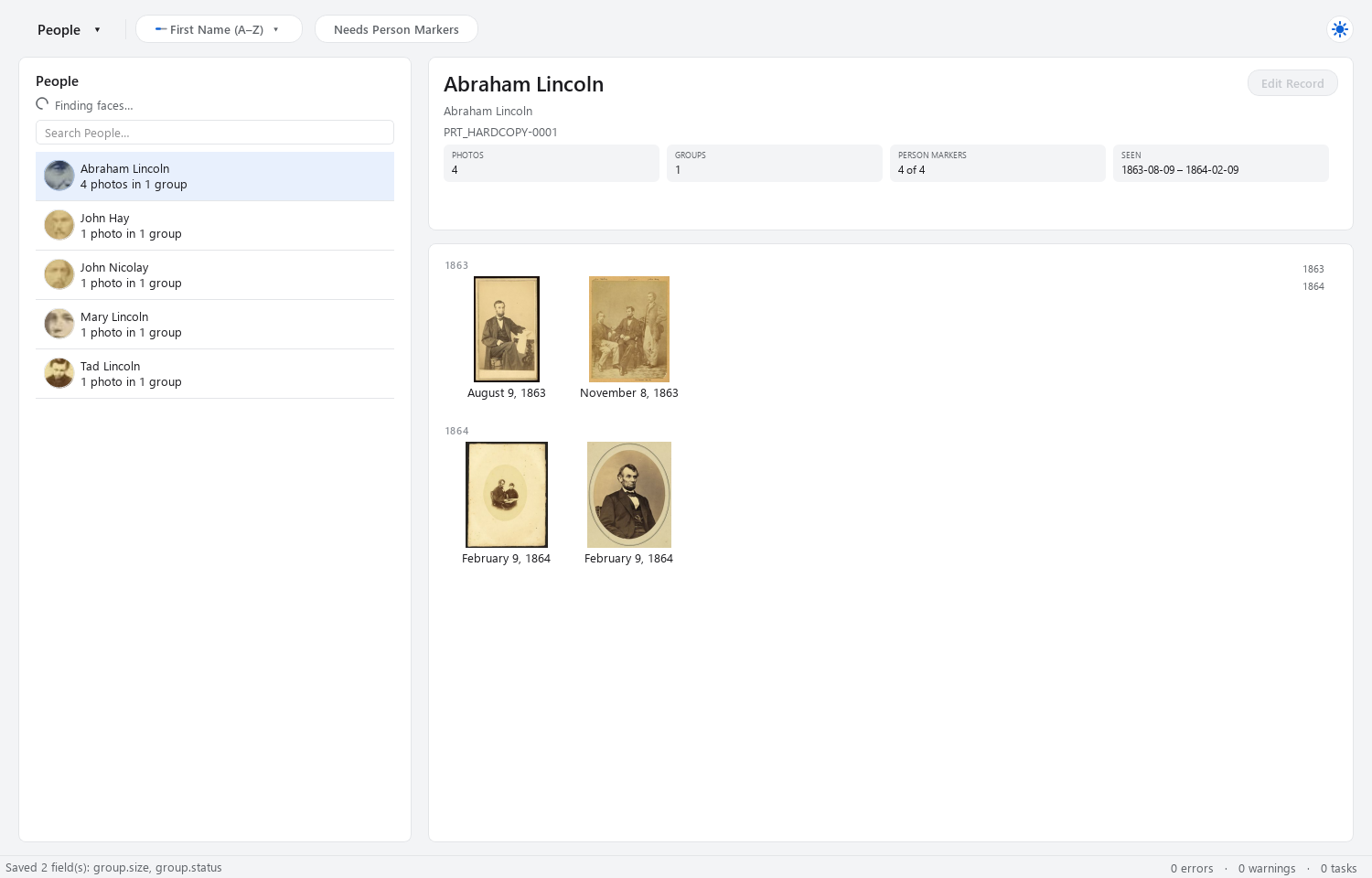
Choose People, then Abraham Lincoln. The four tagged Photos appear together. If a picture is missing, check the person’s name in that Photo’s record and any active filters.
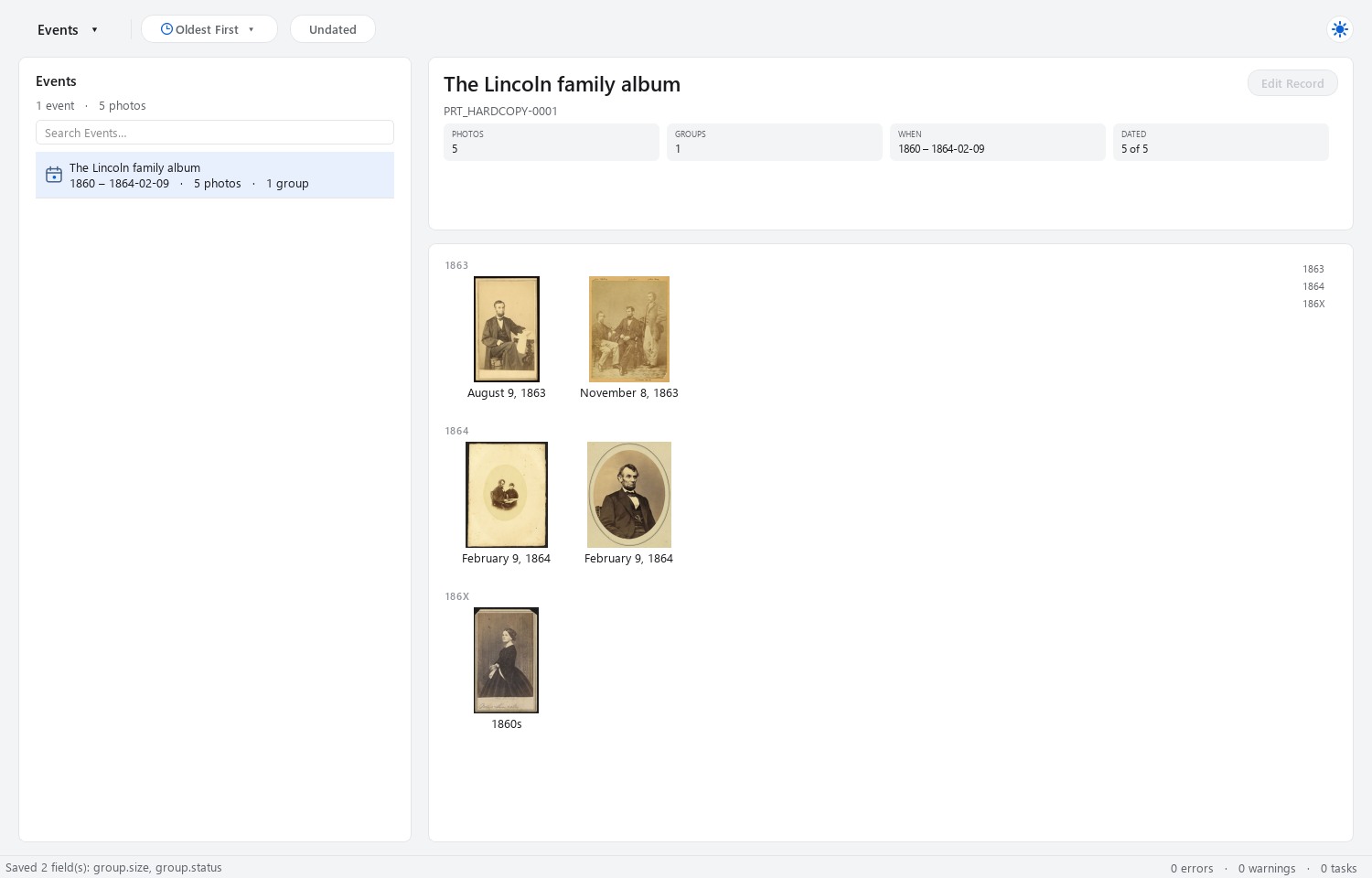
Choose Events and select The Lincoln family album. Here the event label is the demo collection’s shared title. Your own events could be a wedding, holiday, reunion, or a name that makes sense for your collection.
Choose Places and select Washington, D.C. to explore the Photos assigned that place. Photos without a confirmed location stay unassigned. The map needs a resolvable location and online map services; do not replace an uncertain location with a convenient guess just to put a pin on it.
As your library grows, the homepage’s Places screenshot shows how another Group from the finished demo appears on the map.
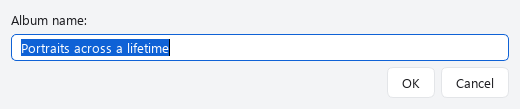
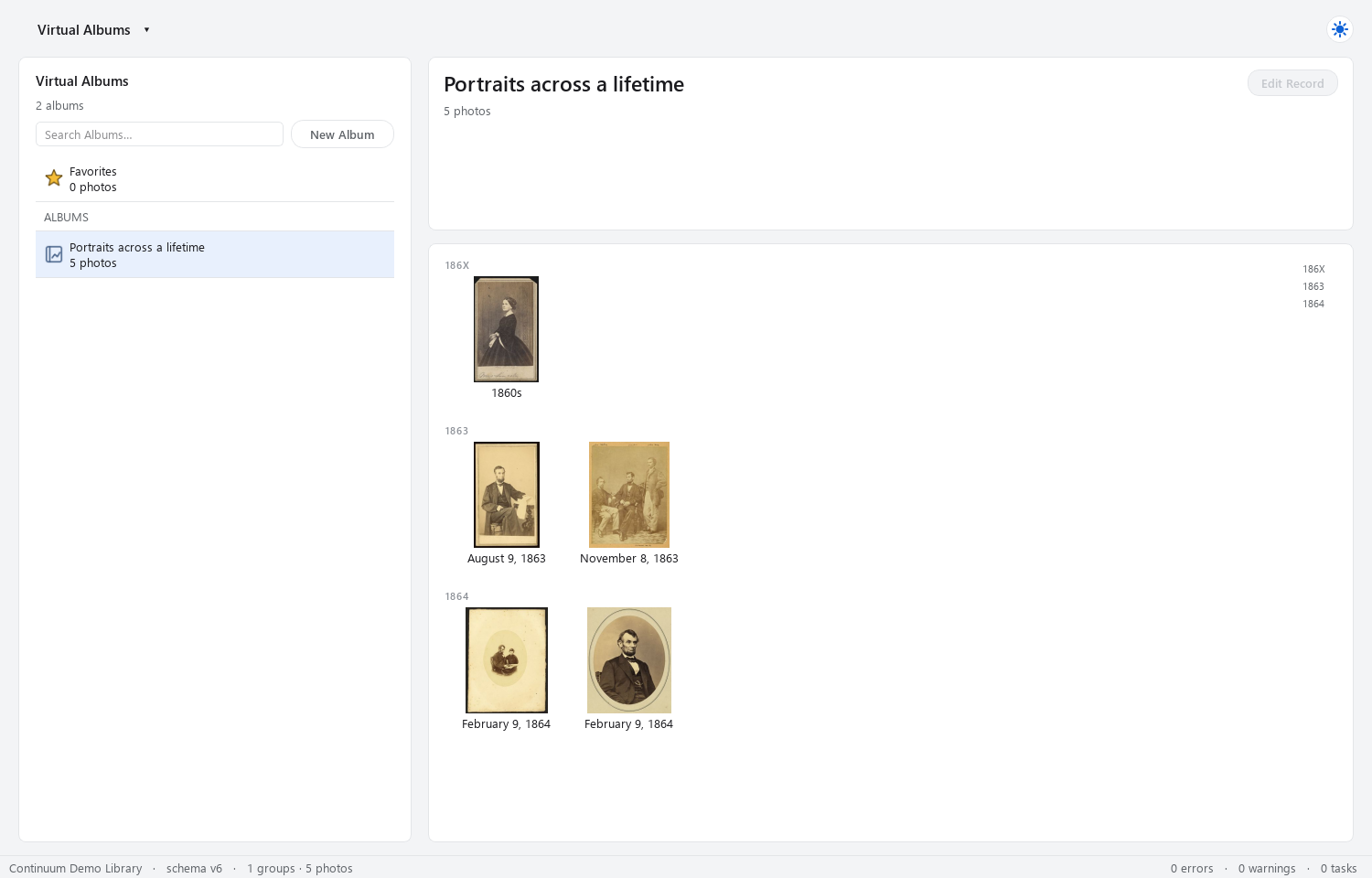
A Group records where a Photo belongs in the library. A virtual album is a selection of Photos, gathered without duplicating or moving their files.
STEP 13
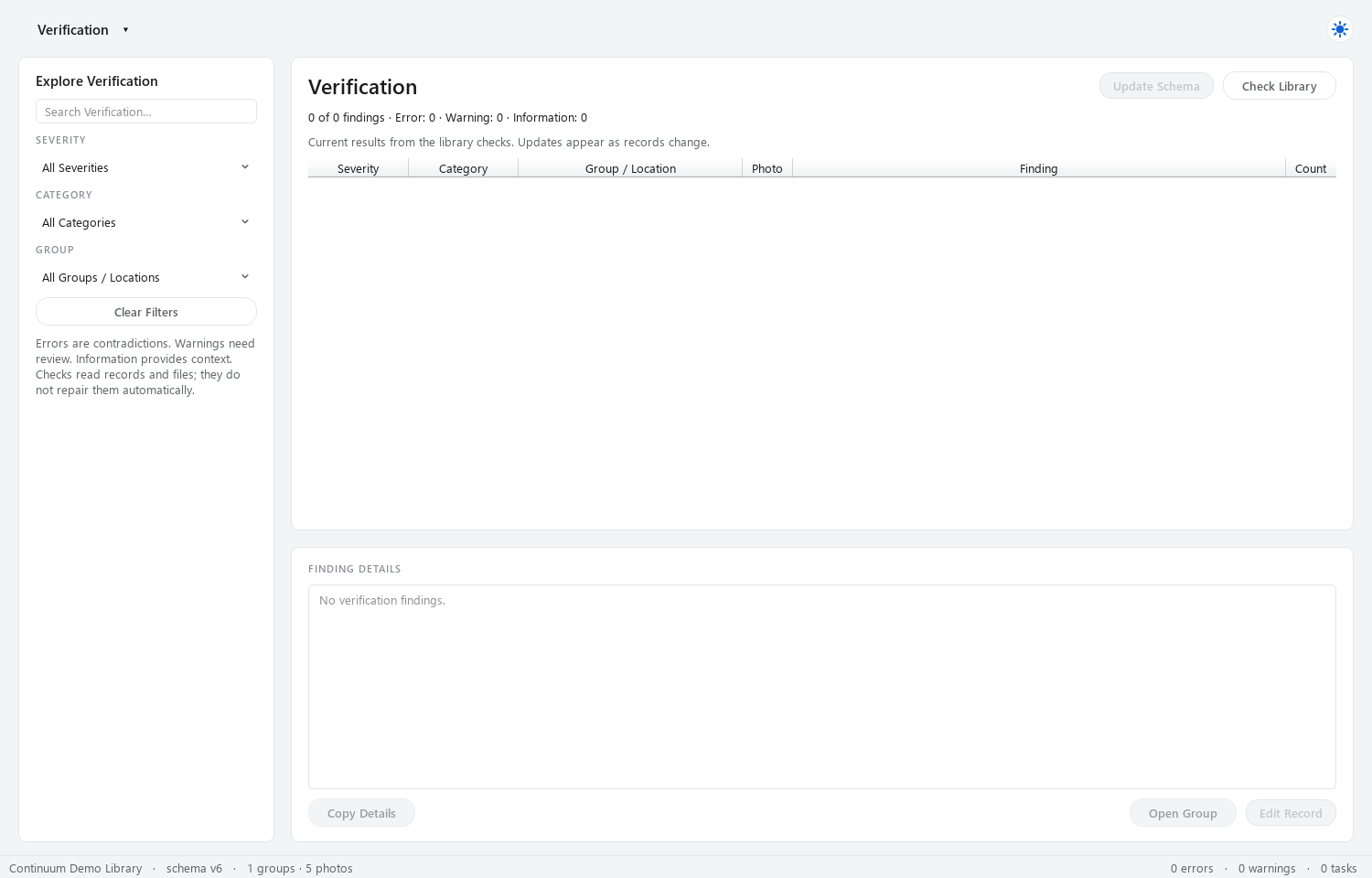
Choose Verification from the view menu, then Check Library. Let the check finish. Review any findings and use the offered Group or Record action to investigate the relevant item.
The completed five-photo example has no verification findings. That means its records and files passed the checks; it does not prove the historical information is correct or that you have a backup.
Choose History to see recorded operations such as imports, record edits, and filename changes. It is a useful account of work performed. It is not a universal Undo button or a replacement for a separate backup.
STEP 14
To send Photos to someone, select them and choose Export Photos… from the right-click menu. Choose a destination outside the Photo Library. Review the export options, then choose Export.
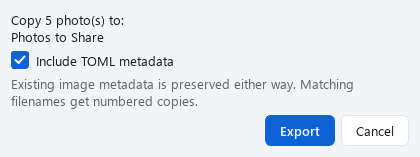
Include TOML metadata asks the app to embed the effective Group and Photo record as structured text in the exported copies’ XMP description. It is a separate option from fixing EXIF dates. Existing image metadata is preserved either way; check the export results for any files that could not be processed.
Review the selected Photos’ notes, names, and storage details before sharing record metadata. For an ordinary photo-only handoff, leave this option unchecked. Exporting a selection does not make a complete backup of the library.
STEP 15
continuum.photos folder.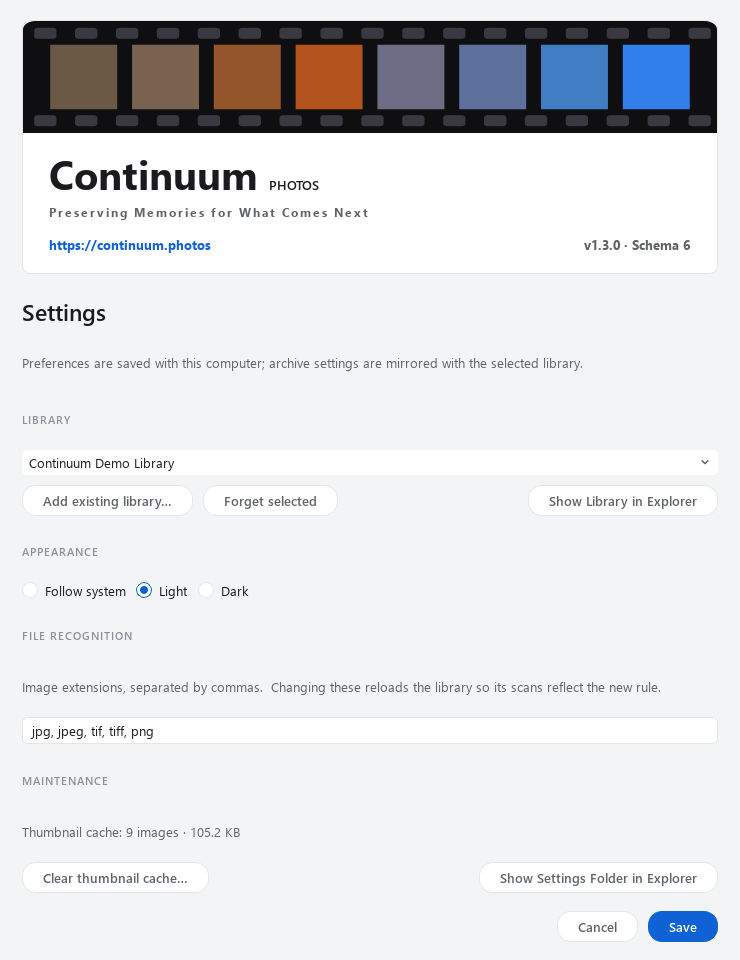
When you move a library to another drive or computer, copy the whole folder and open that copied library through Settings → Add existing library…, then Save. On a fresh installation, select it in the welcome flow. Do not keep pointing at the old path after disconnecting the old drive.
STEP 16
You now have the beginnings of the same demo Photo Library seen on the homepage: five images, their historical source details, people, physical-copy records, and a virtual album. Add your next packet or collection as a new Group, then repeat the import, description, verification, and backup steps.
Walkthrough prepared with the current desktop source and Catalog schema 6. Screenshots use an isolated reconstruction of the first Group from the demo ZIP published with app v1.3.0. Physical custody, sizes, and storage notes are simulated; photo identities and source evidence follow the published demo. Interface details may change in later releases.